Loading...
Welcome to the Braintree Onboarding Portal
If you have any problems logging in, please contact the HR team.

Dashboard
Page
Page
Edit your profile
Your documents
Help guide
Activating your account for the Braintree Onboarding Portal
Upon logging into the Braintree Onboarding Portal for the first time, you will need to activate your account on the system. Depending on your email address provided, if you have a Microsoft Account, you will sign in with this (otherwise you will be emailed a one-time passcode to sign in).
After logging in, you will be prompted with a consent message as below:
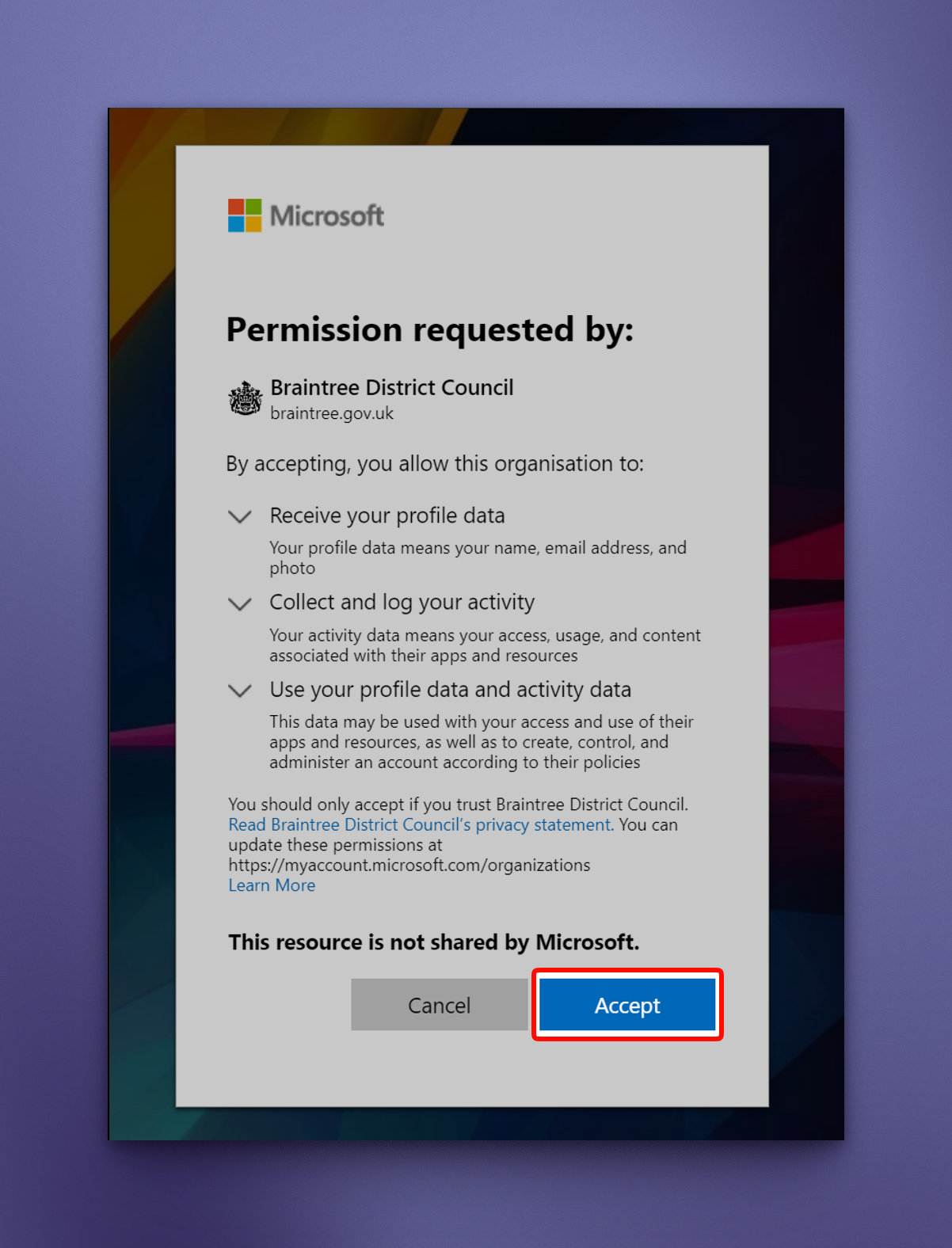
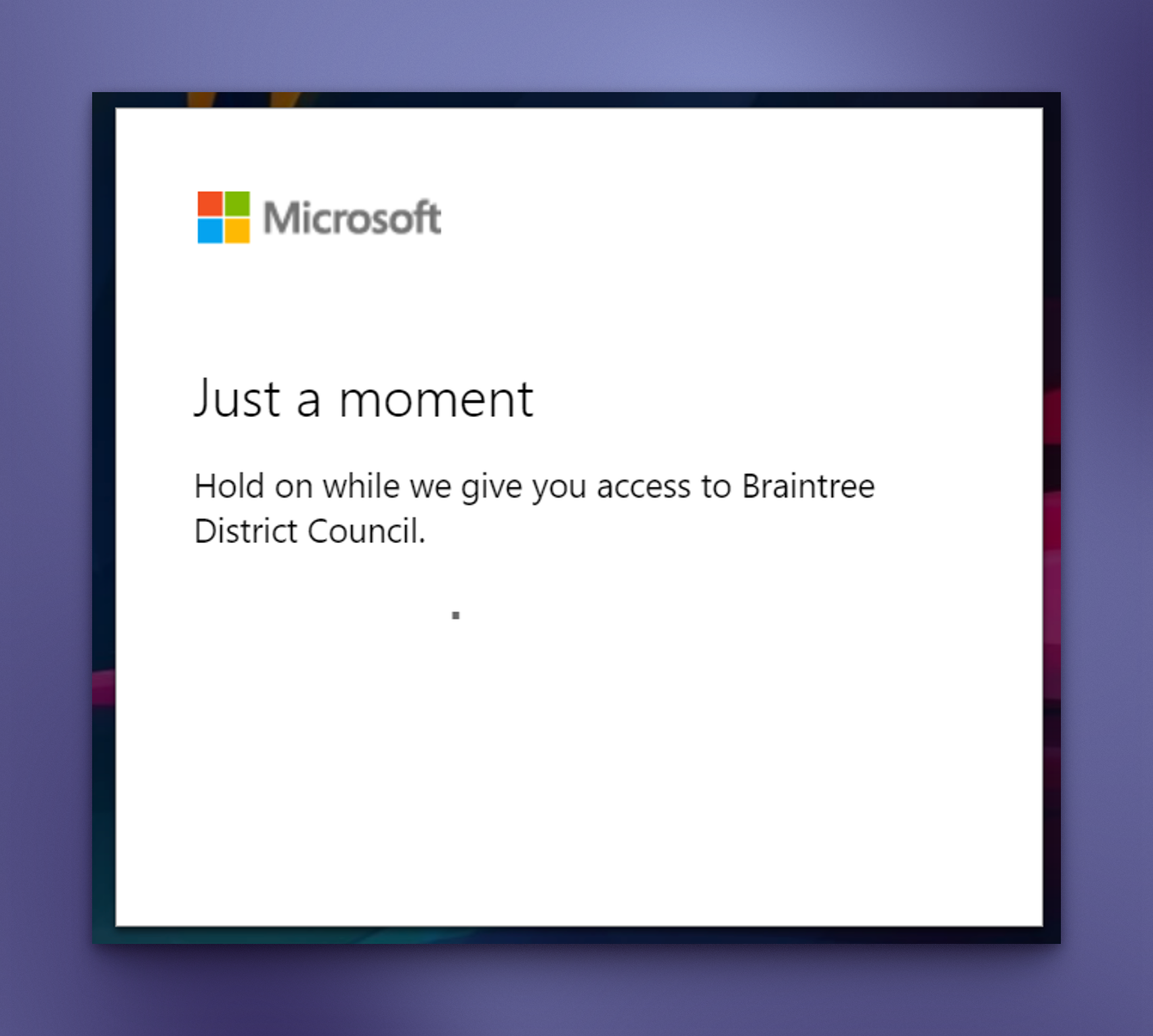
Once you have accepted the consent prompt - the system will activate your account (this can take up to 2 minutes to complete):
You will then be prompted to set up Multi-Factor Authentication (MFA) using the Microsoft Authenticator app:
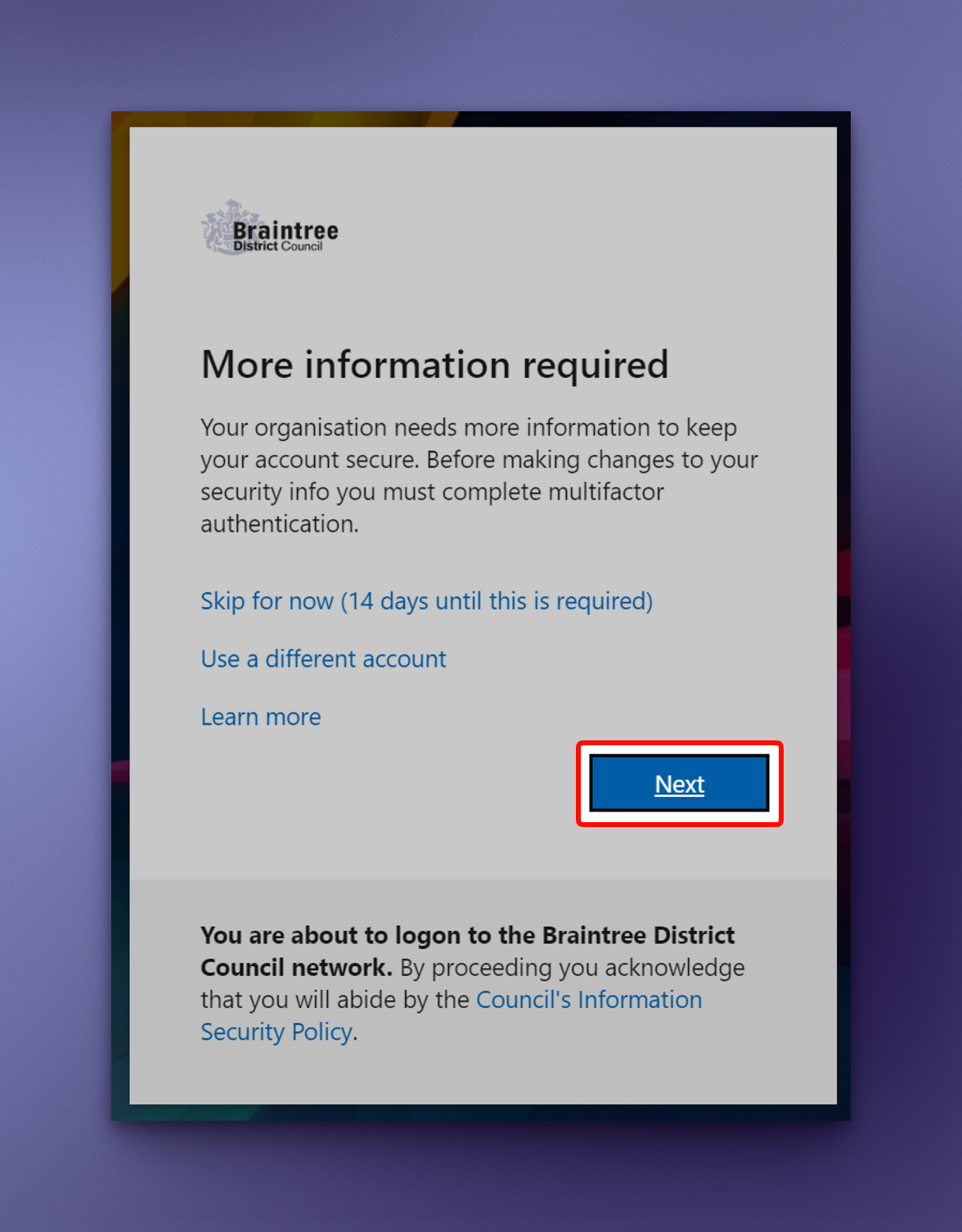
Please note that skipping this step will prevent you from accessing the Braintree Onboarding Portal. This is a required step to protect your personal information.
When you have set up MFA, you will then be redirected to the Braintree Onboarding Portal where you can then begin the onboarding process.
If you have any issues accessing the @appName or have queries around the login process, please contact the HR team.
Resetting MFA
If you lose access to the MFA app or have issues accessing the Braintree Onboarding Portal, please contact the HR team who can assist with resetting your account.
Uploading certificates/qualifications
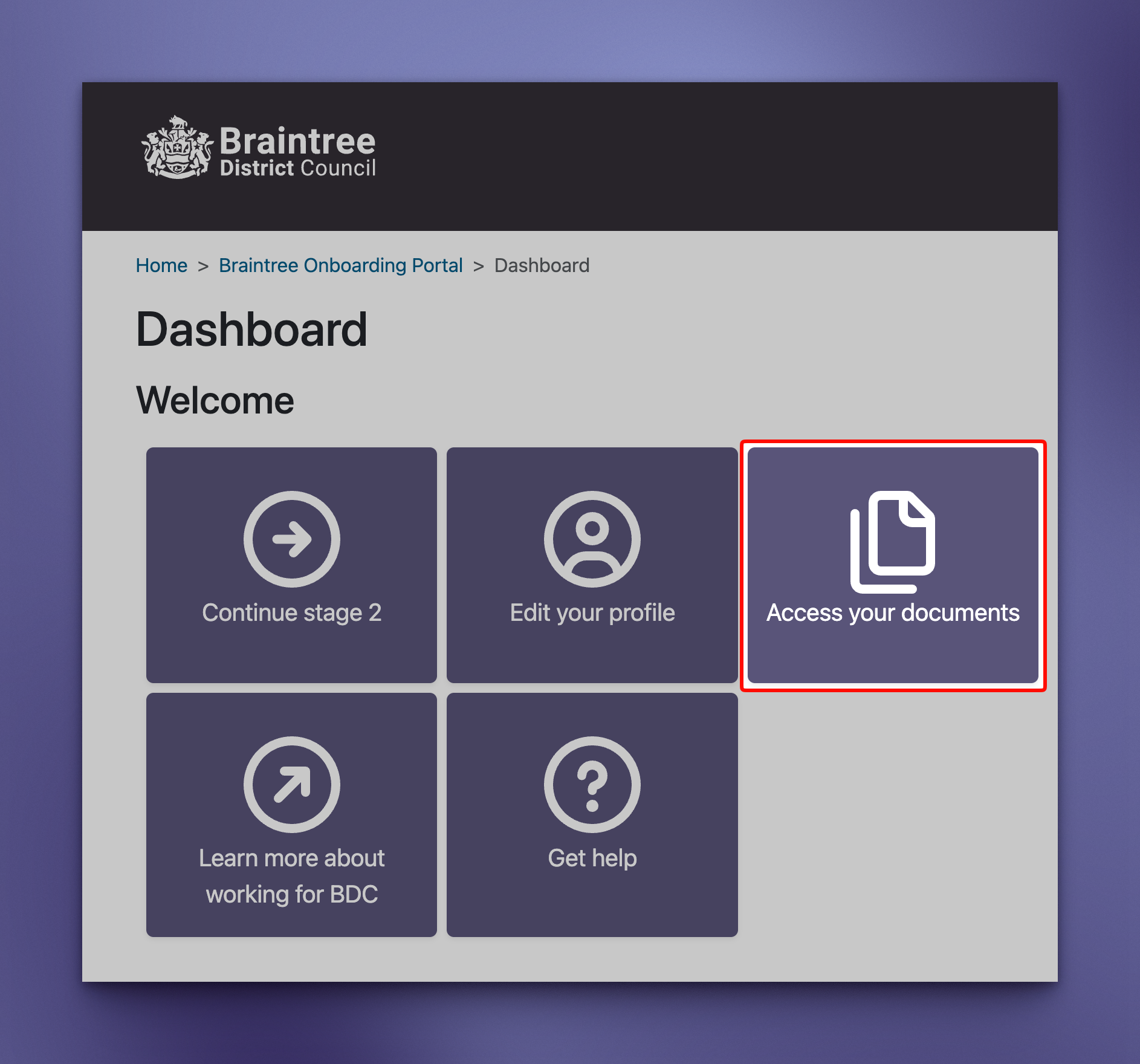
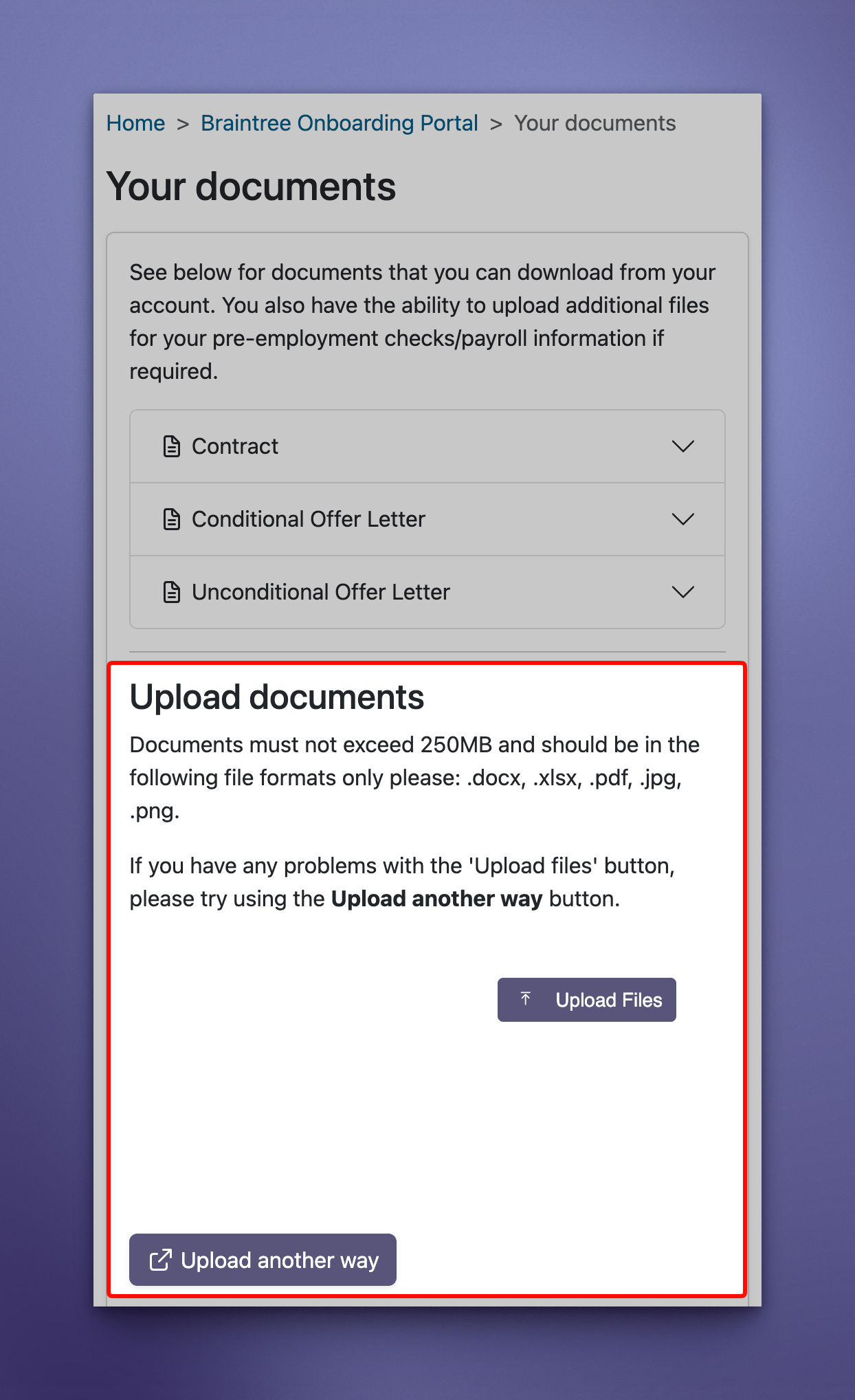
If required for your job role, you can upload additional documents such as certificates and qualifications from the Access your documents area of the Braintree Onboarding Portal:
Loading...
Page not found
The page or link you're trying to get to doesn't exist.
An error has occurred
The Braintree Onboarding Portal has encountered an error trying to load this page.